> ## Documentation Index
> Fetch the complete documentation index at: https://nxtwavedisruptivetechnologiesprivatelimited.mintlify.site/llms.txt
> Use this file to discover all available pages before exploring further.
# 👤 Profile Section
> Keep Your Info Up-to-Date
### **What’s This About?**
Your [**Profile Section**](https://learning.ccbp.in/edit-profile) is the one-stop place to manage all your personal, academic, and professional details. From updating your mobile number and adding work experience to uploading a profile picture or LinkedIn link—it all happens here.
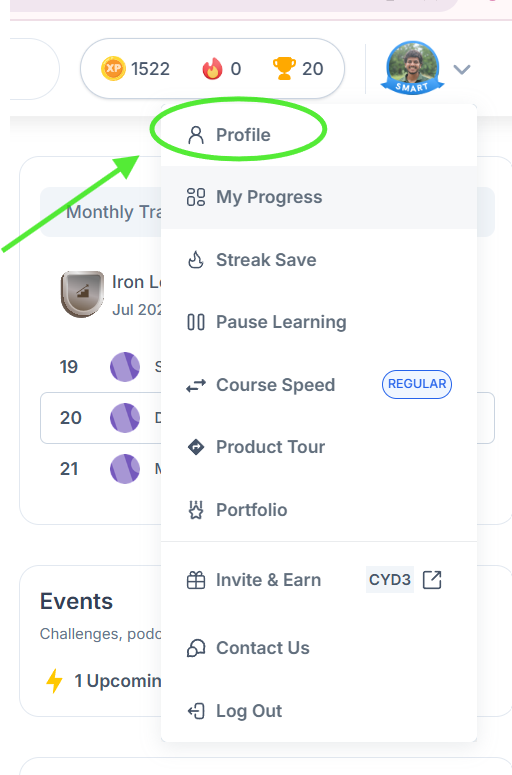 If you joined the course in 2025, you’ll find it by clicking your **profile icon** at the top-right corner of the Learning Portal, then selecting **'Profile'**. Otherwise, it's available by clicking the profile icon in the bottom-left corner
***
### **What You Can Do**
* Edit your **basic info** like name, photo, mobile number, and address
* Update your **education details** – college, specialization, CGPA
* Add any **internship or job experience**
* Include **skills** you’ve picked up during your journey
* Link your **LinkedIn, Twitter**, or other professional profiles
* Use it for generating placement info
***
## **How to Use It**
### **1. Open Your Profile**
Click your profile picture > Select **“Profile”**.
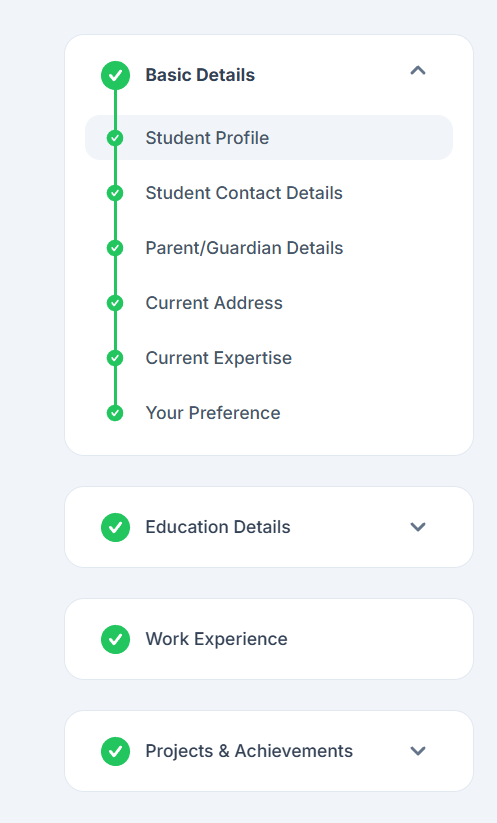
### **2. Add Basic Details**
* Upload a **profile photo** (PNG/JPG under 10 MB)
* Update your **phone number** or **email** (mobile number can be changed once every 6 months if needed). These details will be considered as your registered contact information for the academy program.
* Fill in **address**, guardian info, and other details
### **3. Education Details**
* Choose your **college/university** from the list
* If it’s not there, select **“Other”** and type it manually
* Enter your **CGPA** (enter 0 if you haven’t received one yet)
### **4. Add Work Experience**
* If you’ve done an **internship or job**, select “Yes” and fill in the details
* Otherwise, select “No”
### **5. Add Social Media Links**
* Paste your **LinkedIn URL** (e.g., linkedin.com/in/yourname)
* Add your **X Platform URL**
### **6. Save Changes**
Click **“Save”** or **“Update Profile”** to apply changes. You’ll get a confirmation once done.
If you joined the course in 2025, you’ll find it by clicking your **profile icon** at the top-right corner of the Learning Portal, then selecting **'Profile'**. Otherwise, it's available by clicking the profile icon in the bottom-left corner
***
### **What You Can Do**
* Edit your **basic info** like name, photo, mobile number, and address
* Update your **education details** – college, specialization, CGPA
* Add any **internship or job experience**
* Include **skills** you’ve picked up during your journey
* Link your **LinkedIn, Twitter**, or other professional profiles
* Use it for generating placement info
***
## **How to Use It**
### **1. Open Your Profile**
Click your profile picture > Select **“Profile”**.
### **2. Add Basic Details**
* Upload a **profile photo** (PNG/JPG under 10 MB)
* Update your **phone number** or **email** (mobile number can be changed once every 6 months if needed). These details will be considered as your registered contact information for the academy program.
* Fill in **address**, guardian info, and other details
### **3. Education Details**
* Choose your **college/university** from the list
* If it’s not there, select **“Other”** and type it manually
* Enter your **CGPA** (enter 0 if you haven’t received one yet)
### **4. Add Work Experience**
* If you’ve done an **internship or job**, select “Yes” and fill in the details
* Otherwise, select “No”
### **5. Add Social Media Links**
* Paste your **LinkedIn URL** (e.g., linkedin.com/in/yourname)
* Add your **X Platform URL**
### **6. Save Changes**
Click **“Save”** or **“Update Profile”** to apply changes. You’ll get a confirmation once done.
 ***
### **Why It’s Helpful**
* Keeps your details ready for **certificates and placements**
* Helps mentors and companies see your **professional presence**
* Keeps all your info safe, organized, and editable anytime
* Saves time when you apply for jobs or generate resumes
***
### **Common Scenarios**
* **Updated your mobile and email?** Update it here so you don’t miss any alerts.
* **Just completed a new internship?** Add it to show your growing experience.
* **No CGPA yet?** Enter 0—don’t worry, you can update it later.
* **Your college isn’t listed?** Just select “Other” and type it in.
***
***
### **Why It’s Helpful**
* Keeps your details ready for **certificates and placements**
* Helps mentors and companies see your **professional presence**
* Keeps all your info safe, organized, and editable anytime
* Saves time when you apply for jobs or generate resumes
***
### **Common Scenarios**
* **Updated your mobile and email?** Update it here so you don’t miss any alerts.
* **Just completed a new internship?** Add it to show your growing experience.
* **No CGPA yet?** Enter 0—don’t worry, you can update it later.
* **Your college isn’t listed?** Just select “Other” and type it in.
***